

 MG Classics of Jacksonville
How to Use Our Website
A friendly, step-by-step guide to every part of the club website. Take your time. There is no wrong way to do it, and you cannot break anything by looking around.
A note from Chris. This page explains, one step at a time, how to use our club website. It is here to stay, so come back to it whenever you need it.
Every part has a short summary, a big button that takes you straight to the right page, and a Show me how, step by step bar that opens simple numbered instructions. The most important thing we are asking right now is just below: please add your photo and your MG to your profile.
Put your face and your MG on the website!
- Know who’s who. Other members will see your photo and name in the Forum and the member directory, so we can all put a face to a name.
- Show off your car. Your MG appears in the Members’ Cars gallery, where the whole club can enjoy it.
- It only takes a few minutes, and the steps are below. A photo from your phone is fine.
You will be asked to log in first. Your login arrives by email after you renew or join for 2027, usually within 24 hours.
Show me how: add my headshotHide the steps
Add your headshot
- Go to My Profile and log in if it asks you to.
- Find the box called Your photo at the top of the page.
- Under Choose a JPG or PNG press the grey Choose File button. Pick a photo of yourself from your computer or phone. A JPG or PNG up to 15 MB is fine.
- Press the gold Upload photo button.
- Your picture appears in the circle. The button now says Replace photo, in case you want to change it later. Remove photo takes it away.
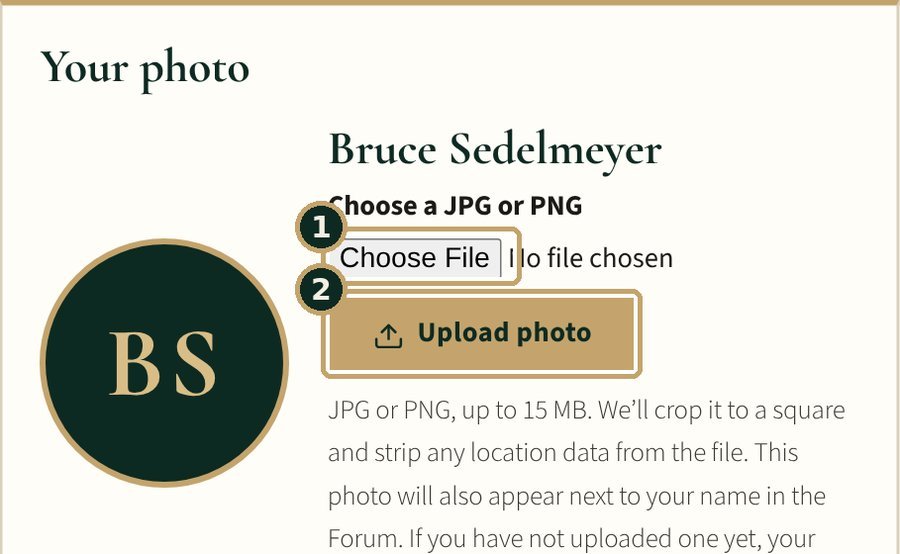
Until you add a photo, other members see your initials in a circle. We crop your photo to a square for you and remove any hidden location information from it.
Show me how: add my car and car photoHide the steps
Add your car and its photo
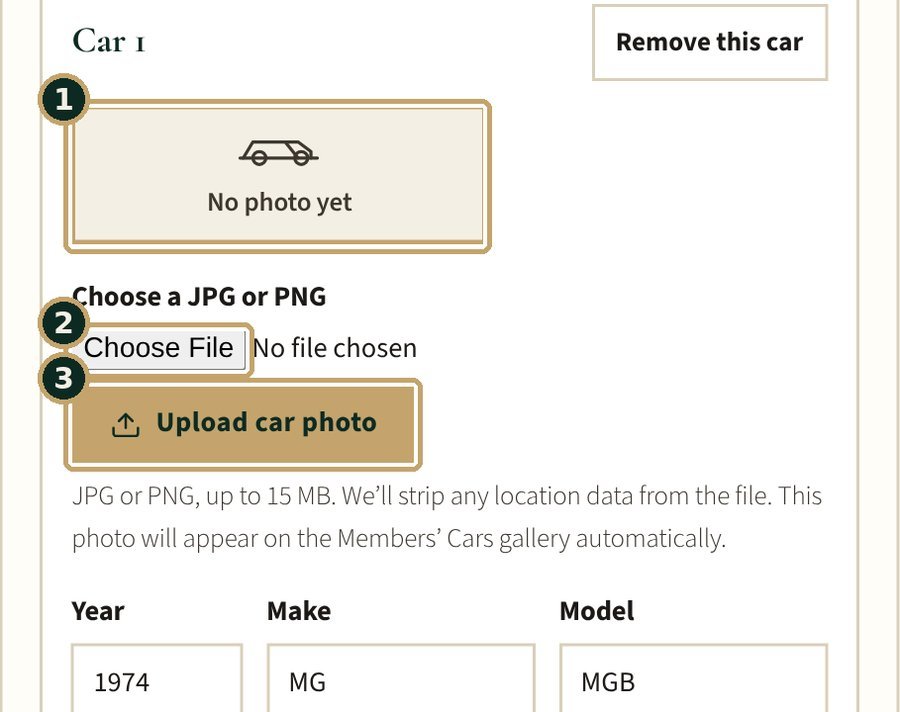
- On My Profile, scroll down to the box called Cars you own.
- Fill in the Year, Make and Model. Make already says MG, so change it only if your car is another make, such as Triumph. Color, Modifications and Notes are optional. (For Modifications you might write: chrome bumpers, overdrive.)
- To show a picture of the car, press Choose a JPG or PNG and pick a photo, then press the gold Upload car photo button.
- Have another car? Press + Add another car and do the same again. Remove this car takes one off the list.
- Press Save changes at the bottom of the page. Your car then appears in the Members’ Cars gallery on its own.
Please do not put a phone number or email address in the car boxes. What you type in them (color, modifications, notes) is shown on your car’s card in the gallery.
Club News
Updated Saturday, November 28, 2026
The Christmas Party
- When
- Sunday, December 13, 2026, 1:30 PM to 5:00 PM
- Where
- Culhane’s Irish Pub, 9720 Deer Lake Ct, Jacksonville, FL 32246
- Cost
- $10.00 per person with registration. Members may bring up to 3 guests (a member plus 3 guests is $40). The club will pay the balance of the meal, excluding liquor.
Space is limited to 50 people, first come, first reserved. You can register right up to the day of the party, as long as spots are still available, but please don’t wait too long.
Christmas Party 35 of 50 spots taken – 15 left!
Show me how, step by stepHide the steps
- Go to mgclassicsfla.org/christmas-party, or press the gold button above.
- Fill out the short form: your Name, Email, Phone Number, guest information, and what you will be driving.
- Click Submit. You will then go to the payment page.
- Complete your payment with the PayPal button for everyone in your party.
Your spot is reserved once both the form and the payment are in. If you have already paid, you do not need to pay again, but please fill out the form so we have your guest count.
Bring your MG if the weather cooperates!
Renew for 2027
Annual dues are $30 per calendar year. Members who have not renewed by March 15 will lose access to the members area of the website. Access is restored once the annual dues are paid.
New member logins are sent after you renew or join for 2027.
Need the steps? See Join / Renew: step by step.
January meeting
To be announced. Watch the Events calendar for the date, time, and place once they are posted.
This Club News box changes from time to time. Everything below it is the guide to using the website and stays the same.
What would you like to do?
Press any button to jump straight to that part of the guide.
Part 1Before you start: a few simple tips
These tips work on almost any website, not just ours.
Make the words bigger
If the writing is too small, you can make everything on the screen larger in a few seconds.
Show me how: bigger textHide the steps
On a computer
- Click once on the website page, so the computer knows you are using it.
- Hold down the Ctrl key (on a Mac, hold down the Cmd key, the one with the ⌘ sign).
- While holding it, press the + (plus) key. Each press makes the page a little bigger. Press − (minus) to make it smaller.
- To go back to normal size, hold Ctrl (or Cmd) and press 0 (zero).
On a phone or tablet
- Put two fingers on the screen, a little apart.
- Slide them apart. The page grows. Pinch them together to make it smaller.
You can also hold Ctrl (or Cmd) and turn the wheel on your mouse.
Computer, tablet or phone?
The website works on all three. It just rearranges itself to fit.
Show me how: phone vs computerHide the steps
- Computer or laptop: the menu is a row of words across the top of the page. Click a word to go there.
- Phone or small tablet: the row of words is hidden behind a button with three lines (☰) in the top corner. Tap it to open the menu, and tap it again to close it.
- Tapping: on a phone you tap with your finger instead of clicking. Tap once. Wait a moment for the page to load.
- Turn your phone sideways if a table or a photo looks squeezed.
- Uploading photos: on a phone, Choose a JPG or PNG lets you pick a picture from your photo library or take a new one.
Common little things
Scrolling, going back and links, in plain words.
Show me how: scrolling, links and going backHide the steps
- Scroll: roll the mouse wheel, use the bar on the right side of the screen, or slide your finger up the screen on a phone.
- Links and buttons: words in color (often underlined) or gold boxes are things you can click or tap.
- Go back: press the back arrow at the top left of your browser to return to where you just were.
- Go to the top: press the little TOP button at the bottom right of the page.
- Home: click the round MG badge or the words MG Classics of Jacksonville at the top left of any page.
Part 2Finding your way: the menu and the home page
Every page of the website has the same menu across the top, so you can always get to where you want to go.
The menu at the top
Events, Gallery, Prez Sez, Join / Renew, Regalia, Contact Us, Help and About the Club. A gold Join the Club button sits at the end.
Show me how, step by stepHide the steps
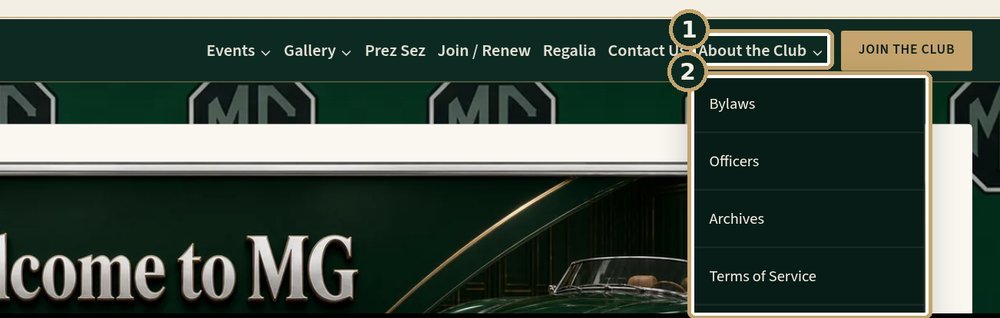
- Look at the top of the page. The menu is the row of words (number 1 below).
- Click a word to open that page. Words with a small arrow, like Events, Gallery and About the Club, also have a drop-down list.
- To see the list, hold the mouse over the word, or click it. Then click the page you want.
- The gold Join the Club button (number 2) takes you to the Join / Renew page.

- On a phone, tap the three-line button ☰ in the top corner first. Then tap a word to open its list.
Map of the whole website
Where each page lives in the menu.
Show me: the whole menu in one tableHide the steps
| Menu word | What is inside |
|---|---|
| Events | Upcoming events and calendar; GOF; British Car Classic |
| Gallery | Photo albums by year; Members’ Cars |
| Prez Sez | The monthly message, the newsletter and the archive |
| Join / Renew | Join the club or renew; then pay your dues |
| Regalia | Club name tags, badges and patches |
| Contact Us | Send a message to the officers |
| Help | This guide, How to Use Our Website; Set up My Profile; Forgot your password? |
| About the Club | Bylaws, Officers, Archives, Terms of Service, Blast from the Past, Christmas Party, Monthly Meeting Registration, and Members Only (Resources, Membership Roster, NAMGAR / NAMGBR, Historic Membership Data, Forums) |
The very bottom of every page (the “footer”) repeats the main links, plus links to our friends at FCCC, NAMGAR, NAMGBR and NEMGTR, and a little counter showing how many people have visited.
The home page
Club news, a short membership box and a little MG history.
Show me how, step by stepHide the steps
- Click the round MG badge at the top left of any page to come back to the home page.
- Scroll down to read the latest club news.
- Use the gold Join the Club button if you know someone who would like to join.
Part 3About the Club
Who we are, who runs the club, and the club’s papers and history.
About the Club
Our story, what we do, MG history and how to join, in four tabs.
Show me how, step by stepHide the steps
- Open About the Club from the menu.
- Under the big picture you will see tabs: Our Story, What We Do, MG History and Join the Club.
- Click a tab to read it. Click another to switch.
A “tab” is a button that changes what is shown below it, without leaving the page.
Officers and Directors
Who is President, Vice President, Treasurer and Secretary, with their terms and their cars.
Show me how, step by stepHide the steps
- Open About the Club and click Officers.
- Scroll down the page to read about each officer.
Bylaws
The club’s rules, in Articles I to XI.
Show me how, step by stepHide the steps
- Open About the Club and click Bylaws.
- Scroll to read. Make the words bigger with Ctrl and + if you like.
Terms of Service
Four tabs: Terms of Service, Release of Liability, Entering an Event, and Privacy Statement.
Show me how, step by stepHide the steps
- Open About the Club and click Terms of Service.
- Click a tab to read that part.
Archives: MG Technical Library
Links, Articles, Wiring Diagrams, Owners Manuals, Newsletter Archives and Web Links for your MG.
Show me how, step by stepHide the steps
- Open About the Club and click Archives.
- Click a tab, such as Wiring Diagrams or Owners Manuals.
- Click a title to open or download it.
Blast from the Past
Old club minutes and history.
Show me how, step by stepHide the steps
- Open About the Club and click Blast from the Past.
- Scroll to browse. Click an item to read it.
Part 4Events and the calendar
All our meetings, drives, shows and parties are on one calendar.
Find an event on the calendar
The Events page lists what is coming up. Pick a tab to see club events, the wider area calendar, or everything.
Show me how, step by stepHide the steps
- Click Events in the menu.
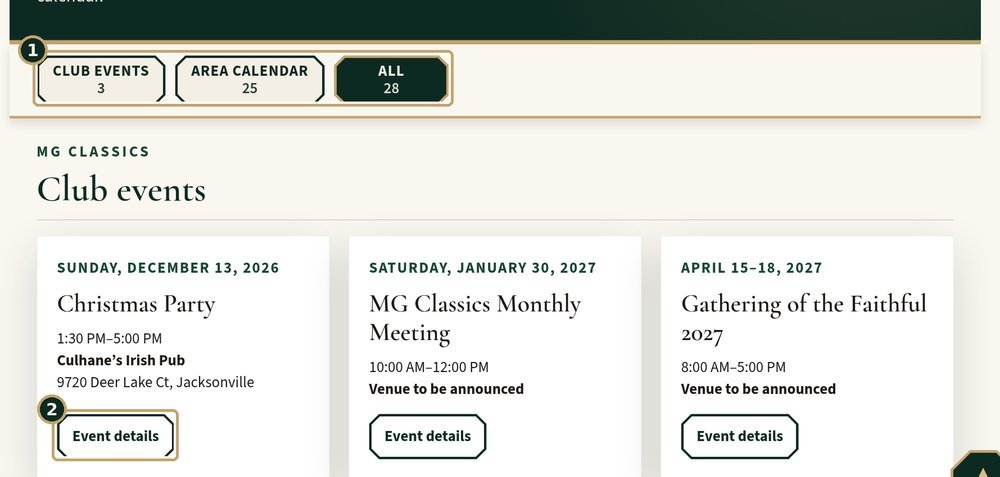
- Near the top, choose a tab (number 1): Club Events, Area Calendar or All. Area Calendar events come from other clubs nearby.
- Each event is a card with the date, time and place. Click Event details (number 2) to read more.
Christmas Party: register and pay
Sunday, December 13, 2026. Register first on the Christmas Party page. When you press Submit, the form takes you to payment.
Show me how, step by stepHide the steps
- Open the Christmas Party page.
- Fill in the registration form first (name, email, phone, guests and your car), then press Submit.
- After you press Submit, the payment page opens by itself. Pay with PayPal there. Your spot is saved once both the form and the payment are done.
The current news about the party is always in the Club News box at the top of this page.
Monthly Meeting Registration
Tell us you are coming to a monthly meeting. There is no charge.
Show me how, step by stepHide the steps
- Open About the Club and click Monthly Meeting Registration.
- Fill in the form and press the submit button.
Meeting dates and places are shown on the Events calendar once they are decided.
GOF: Gathering of the Faithful
GOF South LXI, April 15 to 18, 2027, hosted by MG Classics of Jacksonville.
Show me how, step by stepHide the steps
- Hold the mouse over Events and click GOF.
- Read the details and follow any links on the page.
British Car Classic
Our annual car show. News for 2027 is coming soon, with photos from 2026.
Show me how, step by stepHide the steps
- Hold the mouse over Events and click British Car Classic.
- Scroll to see photos and read the latest news.
Ticket and order pages
Some events use a ticket checkout. You may see “Order completed” after paying. If you open these pages by themselves they show a short message such as “no tickets” or “no order information”. That is normal.
Part 5Prez Sez: the president’s message and newsletter
A message from the president each month, plus the club newsletter and past issues.
Read Prez Sez
Choose the current month, the newsletter, or the archive.
Show me how, step by stepHide the steps
- Click Prez Sez in the menu.
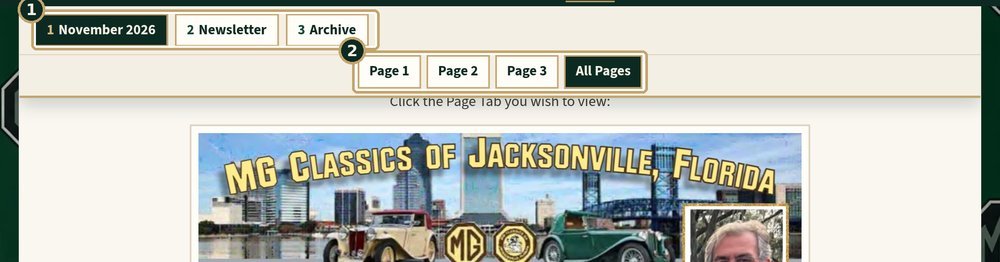
- Use the three tabs at the top (number 1): the current month, Newsletter, and Archive.
- Many months have more than one page. Use the page buttons (number 2) to read Page 1, Page 2, and so on, or All Pages to see them together.
- On the Newsletter tab, press the Download link to save or print it.
- On the Archive tab, press the button for the month you want to read an older issue. It opens in a new tab.
Part 6Gallery and Members’ Cars
Club photos from every year, and a gallery of members’ own cars.
View the photo albums
Albums are grouped by year. Click a photo to enlarge it.
Show me how, step by stepHide the steps
- Click Gallery in the menu.
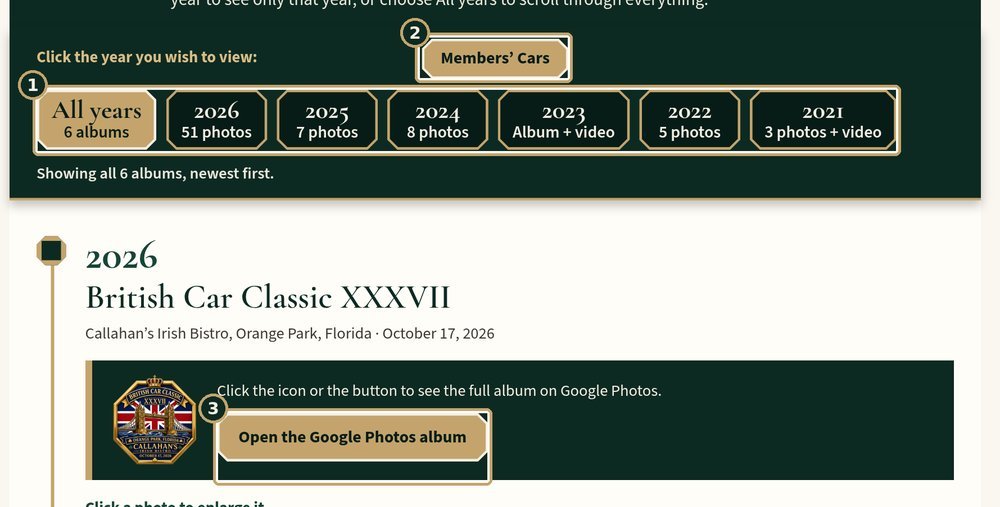
- Choose a year (number 1), or All years to see everything, newest first.
- Click any photo to make it bigger. Use the ← Previous and Next → buttons (or the arrow keys) to see the others in the album. Press the Close button, or the Esc key, to close it.
- To see the full album on Google Photos, press the gold Open the Google Photos album button (number 3).
Have club photos to share? The Gallery page has a “Share your photos” note with what to do.
Members’ Cars
Meet the club’s cars. Your own car shows here after you add it to My Profile.
Show me how, step by stepHide the steps
- Click Gallery, then the Members’ Cars button (number 2 above). You can also hold the mouse over Gallery in the menu and choose it.
- Click a car to see it larger and read its details.
- To add your own, follow the steps at the top of this page.
Part 7Join or renew your membership
Dues are $30 per calendar year. Full membership is for MG owners and associate membership is for anyone. Members who have not renewed by March 15 lose access to the members area.
Join or renew online
Step 1 is a short form about you and your MG. Step 2 is payment.
Show me how, step by stepHide the steps
- Click Join / Renew in the menu.
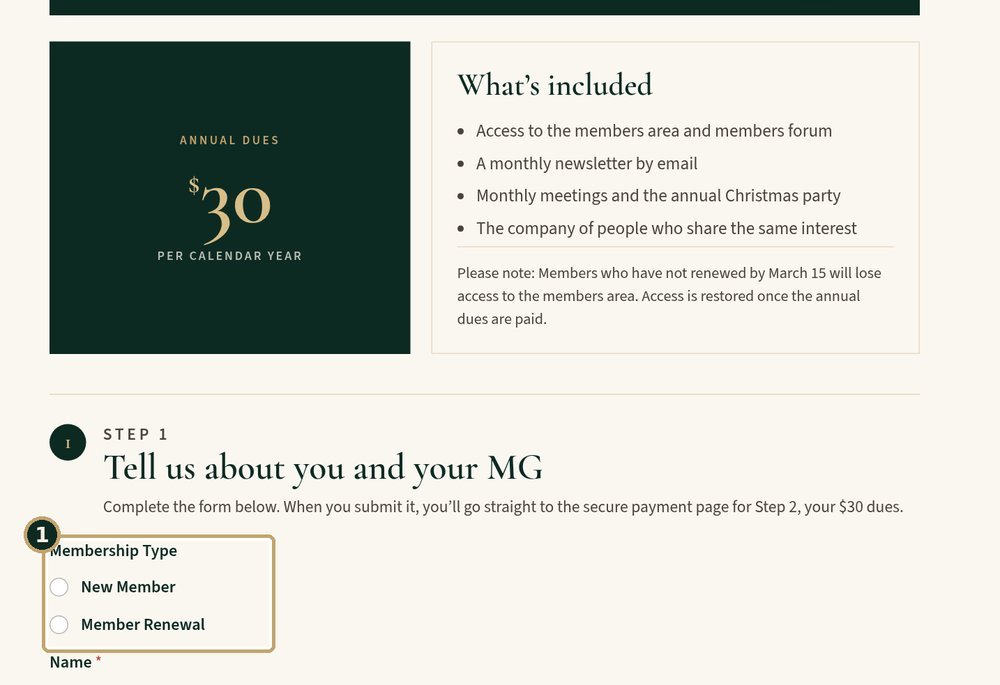
- Under Membership Type choose New Member or Member Renewal (number 1).
- Fill in your Name, Email, Phone, Address, and your car’s Year/Model and Color. Under Do you wish to add a family member to your membership record? choose Yes or No. If Yes, type their name(s) in the If Yes, name(s) of family member(s)? box. If you belong to NAMGAR, NAMGBR or NEMGTR, tick it and give your register membership number.
- Press the Submit button. You go straight to the payment page.
Pay your dues
Step 2: pay by PayPal or credit card. The payment page opens by itself after you send the Join / Renew form, so fill in the form first.
Show me how, step by stepHide the steps
- Fill in and send the Join / Renew form first (see the step above). The Pay Your Dues page then opens by itself.
- Choose PayPal or a credit or debit card and follow the screens.
- Watch your email. Your login arrives there, usually within 24 hours.
What happens after I pay?
Your member login is emailed to you only after you renew or join for 2027, usually within 24 hours. If a day has passed and nothing has come, check your spam folder, then use Contact Us.
Part 8Regalia: club name tags, badges and patches
Show your colors. Pay by credit card or PayPal.
Buy regalia
Four tabs: Purchase, Name Tag, Radiator Grill Badge and Club Patches.
Show me how, step by stepHide the steps
- Click Regalia in the menu.
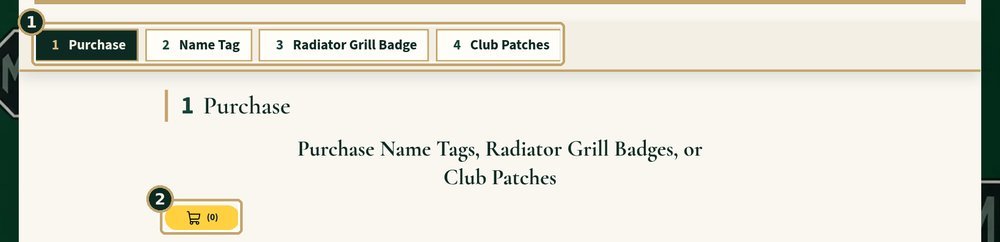
- Click a tab (number 1) to see each item: Name Tag, Radiator Grill Badge or Club Patches.
- On Purchase, choose what you want. Your choices go into the small cart (number 2).
- Open the cart, check your order, and pay with a credit card or PayPal.
Part 9Contact Us
Have a question? Send the club a message.
Send a message
Fill in the form. An officer will answer by email.
Show me how, step by stepHide the steps
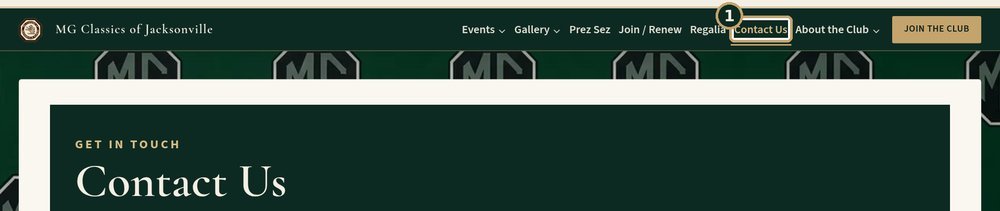
- Click Contact Us in the menu (number 1).
- Fill in your Name, Email and Phone, and type your question in Comment.
- Press Submit.
- The page also shows who the President, Vice President, Treasurer and Secretary are.
Part 10Members area: log in and My Profile
Some pages are only for current members. Your login arrives by email after you renew or join for 2027, usually within 24 hours.
Log in
Use the login box on the Members page.
Show me how, step by stepHide the steps
- Open About the Club and click Members Only (or press the button above).
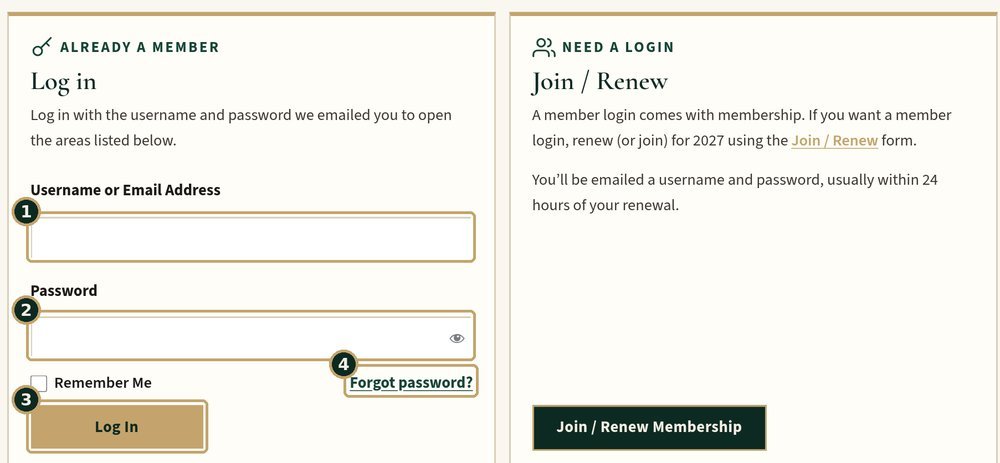
- Type your Username or Email Address in the first box (number 1).
- Type your Password in the second box (number 2). Press the little eye to see what you typed.
- Press the gold Log In button (number 3). Tick Remember Me first if this is your own computer.
Forgot your password?
No problem. We will email you a link to choose a new one.
Show me how, step by stepHide the steps
- On the login box, press Forgot password? (number 4 above).
- Type your username or email address.
- Press Get New Password.
- Open your email. Click the link in the message (it works for 48 hours) and choose a new password.
Cannot find the email? Look in your spam or junk folder. It comes from the club website.
My Profile
Your photo, your details, your cars, your membership and your password in one place.
Show me how, step by stepHide the steps
- Log in first (see above).
- Open My Profile.
- Work down the page: Your photo, Your details, Cars you own, National club memberships, Membership and Change password.
- Press Save changes when you finish. A message says “Your profile was saved.”
Your details
- Check your First name, Last name and Display name (the name other members see).
- Your Email and Phone are private unless you switch on Visible to other members. If you change your email, we send a confirmation link to the new address first.
Membership
- Shows when you joined and your status. You cannot edit these. To renew, press Renew Membership.
Change password
- Type your Current password, then a New password (at least 10 characters) twice, then press Save changes.
The headshot and car steps are in Your profile at the top of this page.
National clubs: show your NAMGAR, NAMGBR or NEMGTR badge
Belong to a national MG register? Tick it on My Profile and a small badge shows on your car cards in the Members’ Cars gallery.
Show me how, step by stepHide the steps
- Log in and open My Profile (see above).
- Scroll down to the box called National club memberships (it sits below Cars you own).
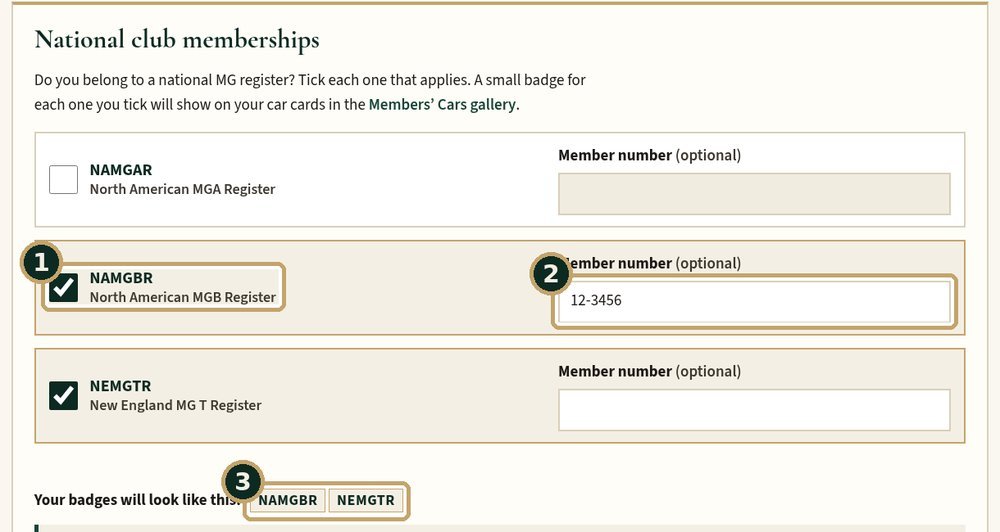
- Tick each register you belong to (number 1): NAMGAR (North American MGA Register), NAMGBR (North American MGB Register) or NEMGTR (New England MG T Register). If you are already known to belong to one, it is ticked for you.
- If you like, type your register membership number in the Member number box (number 2). This is optional, and it is never shown on the website, in the gallery or in the Forum. Only you and the club webmaster can see it.
- Press Save changes at the bottom of the page. The badges (number 3) then show on your cars in the Members’ Cars gallery.
- Changed your mind? Untick the box and press Save changes. The badge comes off your car cards.
Membership Roster, Resources, NAMGAR / NAMGBR and Historic Membership Data
Four members-only pages under About the Club → Members Only.
Show me how, step by stepHide the steps
- Membership Roster: a view-only list of members. To fix your information, contact the webmaster through Contact Us.
- Resources: recommended shops and specialists for MG owners.
- NAMGAR / NAMGBR: for members of those MG registers.
- Historic Membership Data: past membership records.
- Log in first.
- Hold the mouse over About the Club, click Members Only, then pick the page you want.
Part 11The Forum
The Forum is our members-only place to talk, ask questions and swap tips. Your photo from My Profile shows next to your name.
Read and post in the Forum
Three sections: Car Shows, Club Discussions, and Parts & Services.
Show me how, step by stepHide the steps
Car Shows
Shows, drives and meets.
Club Discussions
Anything about the club.
Parts & Services
Who has it, who can fix it.
- Log in first.
- Open About the Club → Members Only → Forums.
- Click a section: Car Shows, Club Discussions or Parts & Services.
- Click a topic title to read the replies.
- To start your own, open the section and press the New Topic button. Type a short title next to Subject:, then your message, and press Submit. To answer someone, open their topic and press Reply (or Quote to include their words), type your answer and press Submit.
Haven’t added your photo and your MG yet? It takes just a few minutes, and the whole club will enjoy seeing them.
Go to My ProfileIf you get stuck
It happens to everyone. Please do not give up. Here is what to try, in this order:
- Press Ctrl and + (or Cmd and +) to make the words bigger, or Ctrl and 0 to start over.
- Press the browser’s back arrow to go back, or click the MG badge at the top left to start again from the home page.
- Can’t log in? Use Forgot password? on the login page.
- Still stuck? Use Contact Us and tell us what you were trying to do. Please do not send your password. We will help you.